
The SiteSkite MCP Connector allows you to connect your SiteSkite account directly with ChatGPT, enabling AI-powered interaction with your WordPress sites, backups, reports, and operations.
With this integration, you can manage and monitor your websites using natural language—turning ChatGPT into a WebOps assistant for WordPress.
What is the MCP Connector?
The MCP (Model Context Protocol) Connector is a secure bridge between ChatGPT and SiteSkite, allowing ChatGPT to:
Access your SiteSkite-managed websites
Perform actions using SiteSkite APIs
Retrieve insights about backups, updates, and performance
Assist with troubleshooting and operations
It transforms ChatGPT into an intelligent control layer for your WordPress infrastructure.
What You Can Do with MCP
Once connected, you can use ChatGPT to:
Manage Sites
List all linked websites
Check site status and health
Monitor uptime and performance
Control Plugins & Themes
Install or update plugins
Enable/disable problematic plugins
Run bulk updates using Smart Engine
Work with Backups
Check backup status
Trigger new backups
Restore or clone sites from backups
Troubleshoot Issues
Detect failures or downtime
Use Recovery Mode guidance
Diagnose plugin/theme conflicts
Generate Reports
Create or summarize maintenance reports
Analyze performance and uptime trends
Requirements
Before connecting MCP, make sure:
Your site is connected to SiteSkite
Your SiteSkite API Key is active
You have access to ChatGPT with MCP support enabled
MCP Server Details
Use the following configuration:
MCP Server URL:
https://mcp.siteskite.com
How to Connect SiteSkite to ChatGPT
Follow these steps to connect:
Step 1: Open ChatGPT MCP Settings
Go to ChatGPT settings or integrations section
-
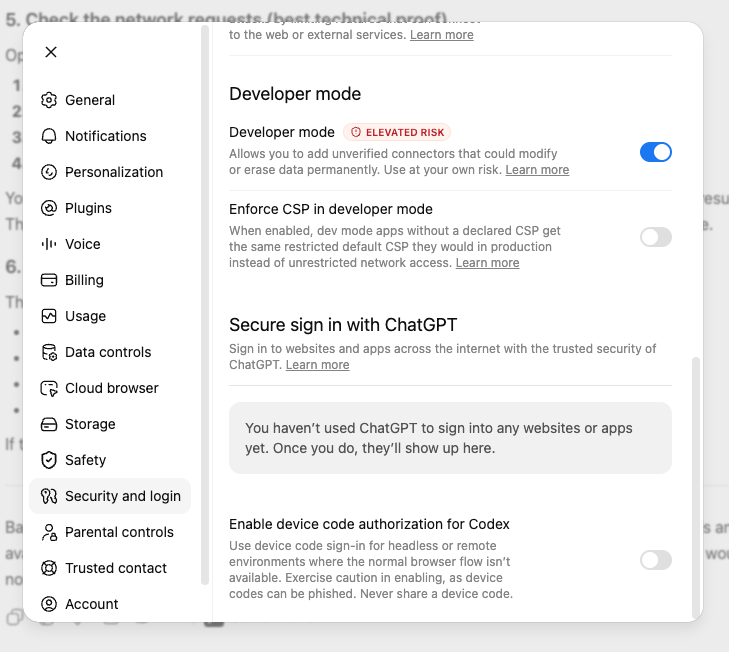
Navigate to Security and login: Developer mode and turn this setting on.
-
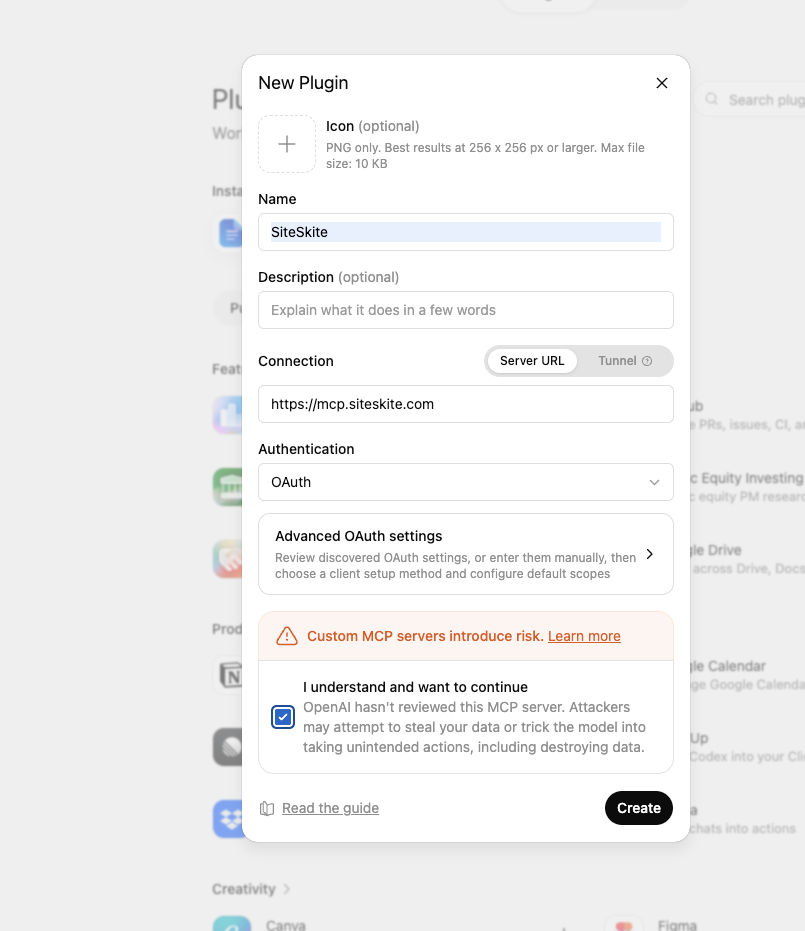
Navigate to MCP / Connectors: Direct Open link
Step 2: Add a New MCP Server
Enter the following:
Server URL:
https://mcp.siteskite.com
Step 3: Authenticate
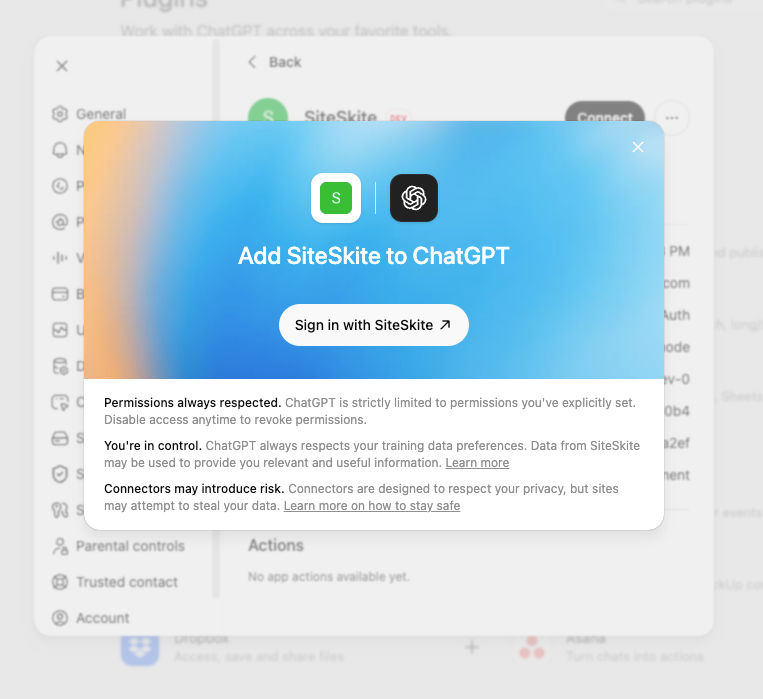
You will be redirected to SiteSkite
Log in to your SiteSkite account
Approve access
Step 4: Connection Complete
Once authorized:
ChatGPT can securely access your SiteSkite data
You can start issuing commands immediately
Example Commands You Can Use
After connecting, try prompts like:
“Show me all my connected sites”
“Check if any site has plugin updates pending”
“Install Elementor Plugin to my site”
“Rollback Elementor to 1.2.3 version”
“Disable recently updated plugins on my site”
ChatGPT will interpret and execute these actions using SiteSkite.
Security & Permissions
The MCP Connector is designed with strong security controls:
Uses OAuth authentication
Access is limited to your SiteSkite account
No direct server access is exposed
Actions require valid authorization
Sessions can be revoked anytime
Benefits of Using MCP with SiteSkite
AI-Powered WebOps
Manage WordPress sites using natural language instead of dashboards.
Faster Troubleshooting
Identify and resolve issues without manual investigation.
Centralized Control
Control multiple sites from one AI interface.
Automation-Friendly
Combine MCP with workflows for advanced automation.
Reduced Complexity
No need to switch between multiple tools or panels.
Best Practices
Use MCP for monitoring and quick actions
Always review critical actions like restores
Keep your API key active and secure
Combine MCP with Sandbox & Blueprints for safer testing
Use reports for client communication
Troubleshooting
If the MCP connection is not working:
Check Server URL
Ensure:
https://mcp.siteskite.comReconnect Account
Log out and reconnect SiteSkite in ChatGPT.
Check API Key
Make sure your SiteSkite API key is active.
Summary
The SiteSkite MCP Connector for ChatGPT turns your WordPress management workflow into a conversational experience. By connecting ChatGPT with SiteSkite, you gain a powerful AI assistant capable of managing sites, performing operations, and troubleshooting issues—all from a single interface.