
The SiteSkite MCP Connector allows you to connect your SiteSkite account with Claude.ai, enabling AI-powered WordPress management through natural language.
With this integration, Claude becomes a WebOps assistant that can help you manage sites, run operations, analyze issues, and interact with your SiteSkite environment—all without switching dashboards.
What is the MCP Connector?
The MCP (Model Context Protocol) Connector is a secure integration layer that connects Claude.ai with SiteSkite.
Once connected, Claude can:
Access your SiteSkite-managed websites
Perform actions via SiteSkite APIs
Retrieve insights about backups, updates, and performance
Assist in troubleshooting and recovery workflows
This allows you to manage your WordPress infrastructure using conversational commands.
What You Can Do with Claude + SiteSkite
After connecting, you can ask Claude to:
Manage Websites
List all linked sites
Check site health and status
Monitor uptime and performance
Plugin & Theme Management
Install or update plugins
Disable problematic plugins
Run Smart Engine updates
Backup Operations
Trigger backups
Check backup status
Restore or clone sites
Troubleshooting
Diagnose downtime issues
Identify plugin/theme conflicts
Guide recovery using Recovery Mode
Reporting & Insights
Generate maintenance summaries
Analyze performance data
Review activity logs
MCP Server Configuration
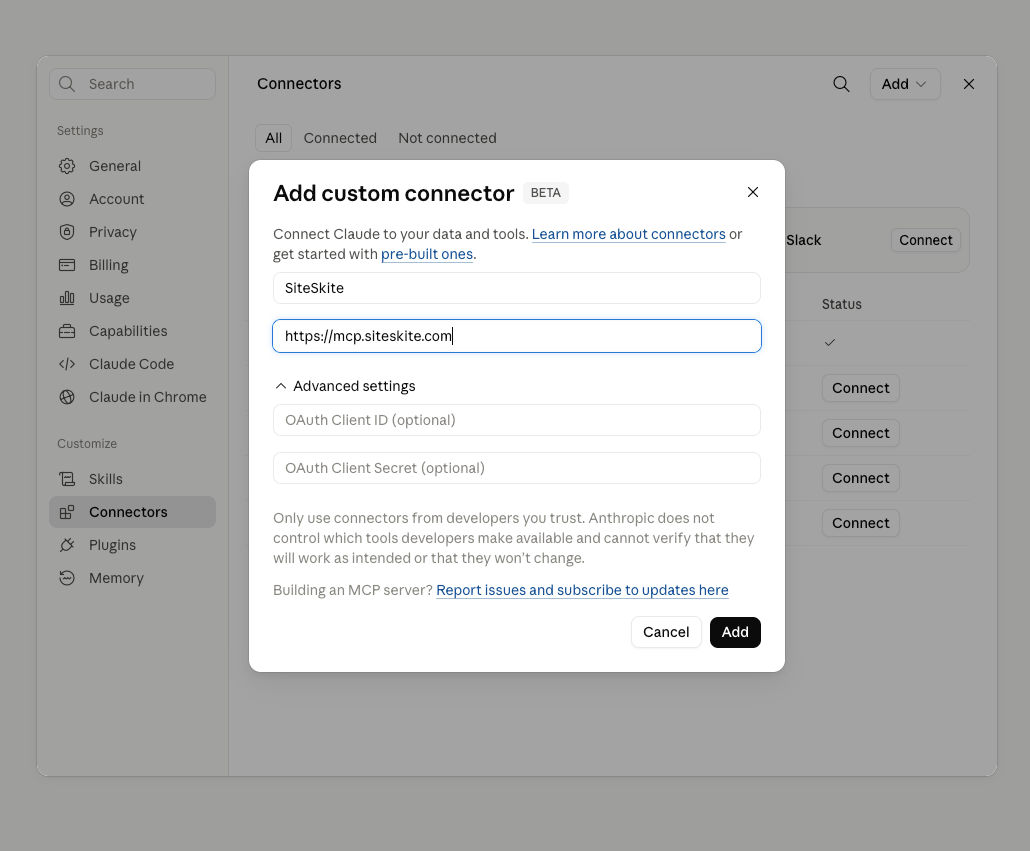
To connect Claude.ai with SiteSkite, use:
MCP Server URL:
https://mcp.siteskite.comOAuth Client ID:
siteskite-mcp-oauth-public
How to Connect SiteSkite to Claude.ai
Step 1: Open Claude Integrations / MCP Settings
Go to Claude.ai
Navigate to Settings → Connectors → Add Custom Connectors: Open Direct Link
Step 2: Add MCP Server
Enter the following details:
Server URL:
https://mcp.siteskite.com
Step 3: Authenticate with SiteSkite
You will be redirected to SiteSkite login
Sign in to your account
Approve access permissions
Step 4: Start Using Claude with SiteSkite
Once connected, Claude can securely interact with your SiteSkite workspace.
Example Commands for Claude
You can now use natural language commands such as:
“List all my connected websites”
“Check if any plugins need updates”
“Create a backup for my main site”
“Why is my site down?”
“Disable recently updated plugins”
“Generate a maintenance report for last 7 days”
Claude will interpret and execute actions through SiteSkite.
Security & Permissions
The MCP Connector is designed with strong security:
Uses OAuth authentication
Access is limited to your SiteSkite account
No direct server credentials are exposed
Permissions are controlled and revocable
All actions are performed via secure APIs
Benefits of Using Claude with SiteSkite
AI-Powered WordPress Management
Control sites using simple natural language.
Faster Troubleshooting
Quickly identify and resolve issues without manual debugging.
Centralized Workflow
Manage multiple sites from one AI interface.
Reduced Operational Complexity
No need to switch between dashboards, tools, or panels.
WebOps Automation
Bring DevOps-style workflows to WordPress.
Best Practices
Use Claude for monitoring, diagnostics, and quick actions
Review critical actions like restores before execution
Keep your SiteSkite API connection active
Combine with Sandbox & Blueprints for safe testing
Use reports for client communication
Troubleshooting
If the connection fails:
Check MCP Server URL
https://mcp.siteskite.comReconnect Account
Log out and reconnect SiteSkite in Claude.
Check SiteSkite Connection
Ensure your sites are properly linked.
Summary
The SiteSkite MCP Connector for Claude.ai transforms WordPress management into a conversational experience. By connecting Claude with SiteSkite, you gain an AI-powered assistant capable of managing sites, performing operations, and troubleshooting issues—all from a single interface.